

Choose where Crumbs appears
Keep Crumbs close when you need it, and choose where it stays out of the way.
Crumbs starts with All sites selected. After installation, its outline can appear automatically on supported pages. The narrow rail keeps navigation nearby without leaving the full outline open.
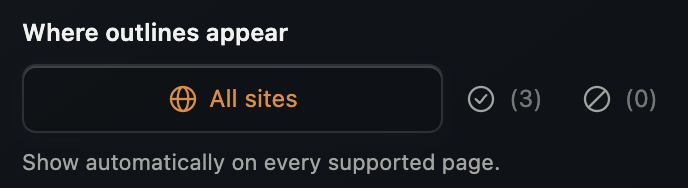
All sites is selected by default. You can change it under General → Where outlines appear.
If you prefer to see Crumbs only on certain sites—or want it out of the way during meetings—you can change where it appears automatically. You can also hide it temporarily on the current page.
Choose the setup that fits your day
Section titled “Choose the setup that fits your day”| What you want | Use this |
|---|---|
| Keep Crumbs available across supported pages | All sites |
| Hide the outline briefly on the current page | The current-page Hide button |
| Show Crumbs automatically only on sites you choose | Specific sites |
| Show Crumbs broadly, but leave selected sites alone | Except these |
Site rules are saved preferences. They stay in effect until you change them; they do not reset at the end of a work session.
Hide Crumbs temporarily on the current page
Section titled “Hide Crumbs temporarily on the current page”Use this when you want the outline out of the way for a little while without changing your saved site rules.
- Expand the Crumbs rail.
- Select the gear icon to open settings.
- In the current-page card, select Hide.
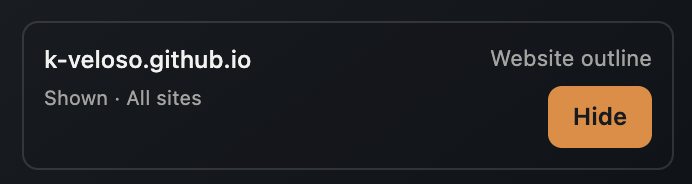
Select Hide to dismiss the outline temporarily. Reopen Crumbs from Chrome’s toolbar to select Show.
To bring it back, open Crumbs from Chrome’s extension toolbar and select Show in the current-page card. You can also open settings from the toolbar to hide it directly.
Show/Hide applies to the current page session. Reloading the page resets that temporary choice, and Crumbs follows your saved site rules again.
Unpinning is different: it lets the expanded outline collapse into a rail. Hide removes the floating outline from view.
Show Crumbs only on selected sites
Section titled “Show Crumbs only on selected sites”Choose Specific sites if you want a quieter default and prefer to decide where Crumbs appears automatically.
- Open Crumbs settings from the outline’s gear icon or Chrome’s extension toolbar.
- Go to General → Where outlines appear.
- Select Specific sites.
- Add the domains or URL patterns where you want the outline to appear automatically.
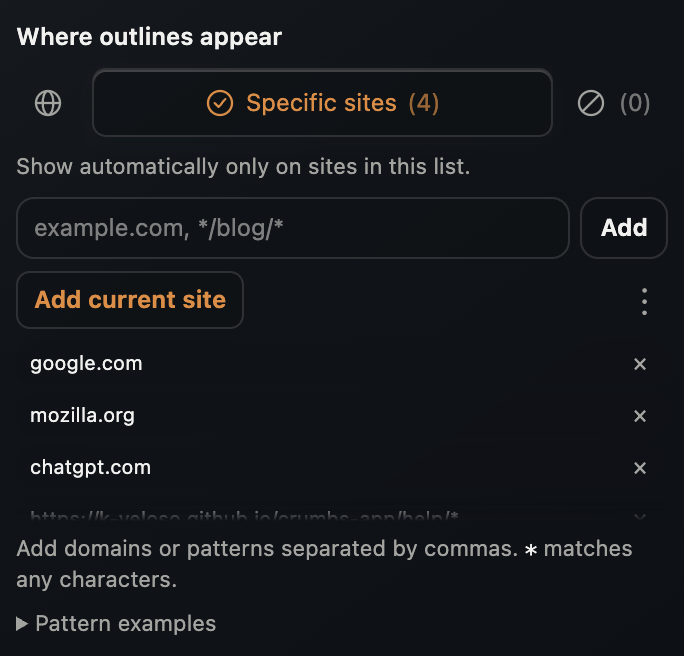
Specific sites shows the outline automatically only on matching sites. Your list can contain domains and more specific URL patterns.
You can leave the list empty. In that setup, Crumbs will not show its outline automatically. You can still use the current-page Show control when you want it temporarily.
Build your list as you browse
Section titled “Build your list as you browse”You do not need to plan your whole list in advance. When you reach a site where Crumbs is useful, open settings and select Add current site.
The button adds the current domain. For example, adding example.com covers pages on that domain. If you only want one part of a site, enter a more specific URL pattern such as example.com/docs/* instead.
Tip: Start with an empty list, then add the documentation, reference, and reading sites where you regularly use the outline.
Keep Crumbs available except on selected sites
Section titled “Keep Crumbs available except on selected sites”Choose Except these if you like having the outline nearby most of the time, but want certain sites to stay clear.
- Open Crumbs settings.
- Go to General → Where outlines appear.
- Select Except these.
- Add the domains or URL patterns where Crumbs should not appear automatically.
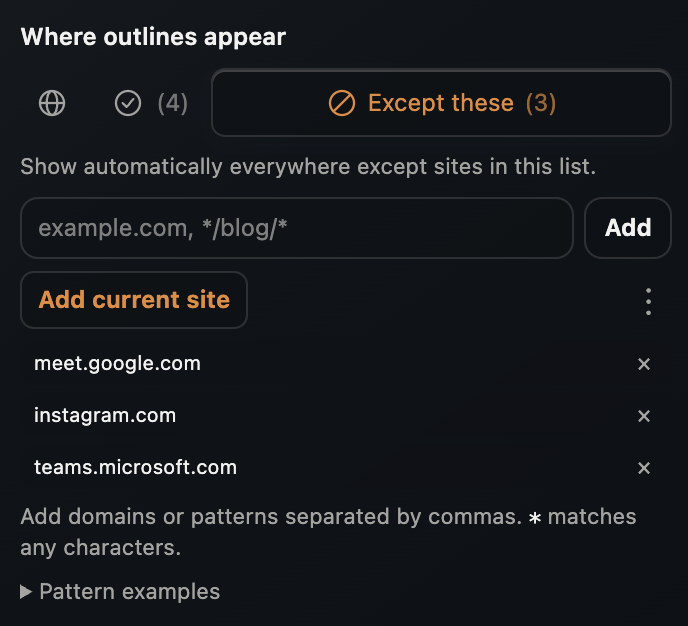
This example keeps the outline from appearing automatically on the listed meeting and social sites.
Use Add current site to add the current domain quickly, or enter a URL pattern for a narrower exception.
Tip: If the rail distracts you during meetings, add the relevant meeting site’s domain. Crumbs can remain available on your reading and documentation sites without appearing automatically on that meeting site.
An empty Except these list excludes nothing, so Crumbs remains available across supported pages.
Match a whole site or just part of it
Section titled “Match a whole site or just part of it”Both site-list modes use the same matching rules. A domain is convenient when you want one choice for the whole site; a URL pattern gives you more control.
| Rule | Matches |
|---|---|
example.com or example.com/* |
That domain and all its paths, without subdomains |
*.example.com/* |
The domain and its subdomains |
example.com/docs/* |
The /docs/ section on that domain |
*/blog/* |
A /blog/ section across domains |
localhost/* |
Localhost on any port |
localhost:5173/* |
Localhost on port 5173 |
The * wildcard matches zero or more characters. For example, example.com/docs/* includes pages below /docs/, while example.com includes all paths on that domain.
Rules without a scheme match both HTTP and HTTPS. Include a scheme to restrict them. New rules ignore query strings and fragments, and paths are case-sensitive.
Use a literal domain when you want a clear site boundary. Broad patterns such as */blog/* can match many unrelated sites. Open Pattern examples in settings for a reminder of the syntax.
Add, copy, or clear a list
Section titled “Add, copy, or clear a list”If you already know which sites you want, paste multiple rules separated by commas:
example.com, *.example.org/*, example.net/docs/*Duplicates are ignored. If any entry in a pasted batch is invalid, correct it and add the batch again; valid entries are not added separately from an invalid batch.
You can remove individual entries or open the list menu to:
- Copy all: copy the rules as a comma-separated list.
- Clear all: remove every rule from that list.
After clearing a list, use Undo while the feedback is visible if you want to restore it.
Remember that clearing a list has different effects in the two modes:
- An empty Specific sites list means the outline does not appear automatically.
- An empty Except these list means no sites are excluded.
A comfortable starting point
Section titled “A comfortable starting point”If you like discovering the outline as you browse, keep All sites and use Hide for occasional interruptions. Add exceptions if the same sites repeatedly get in the way.
If you prefer to invite Crumbs in only when it is useful, choose Specific sites, leave the list empty, and build it with Add current site as you go.
You can change your approach later. Choose the setup that fits how you read and work.